Adding a SIP trunk
A SIP trunk connects your system to the phone network. Exovo ships provider templates that pre-fill the correct settings — registrar, port, and whether the provider authenticates by credentials or by your IP address — so adding a trunk is mostly a matter of entering your account details and numbers.
Choosing a provider template
Admin → Trunks → Add trunk opens the provider selector: pick your country, then your provider. The template fills in the server details and the right authentication mode. If your provider isn't listed, pick Generic and enter the registrar your provider gave you.
Some templates (for example VoIP Innovations) can provision the provider's entire recommended setup — multiple geo-redundant trunks plus a failover outbound rule — in one step.
Registration vs IP-based authentication
Providers authenticate one of two ways, controlled by Register with provider on the Server Details tab:
- Registration (checked, the default): the trunk sends SIP REGISTER with your Authentication ID and password. Status shows Registered when the provider accepts.
- IP-based (unchecked): no registration — the provider trusts calls from your public IP, which you register in their portal. The trunk list shows IP auth instead of a registration state, and credentials are optional. Internet providers send calls to Exovo's external trunk port 5080. Local IP-authenticated providers with LAN mode enabled use the configured LAN address and 5082 instead. Port 5060 requires authentication and is unsuitable for an IP-only provider. See LAN trunks and gateways.
Trunk credentials and the registrar
On the Account Details tab, enter the Main Trunk Number (your primary number, in
international + format) and, for registering trunks, the authentication ID and password from
your provider. The Server Details tab carries the registrar hostname and port (5060 unless
your provider says otherwise) — pre-filled by the template.
DIDs and the default route
Add every number the provider routes to you on the DID Numbers tab (international format). These DIDs become selectable in inbound rules and per-user caller ID; on SMS-enabled trunks, each DID has an SMS checkbox to enable messaging on it.
To load a block of numbers at once, use Import on the DID Numbers tab. Paste — or upload — a
CSV with one number per line as number,name (the name is optional; a leading number,name
header row is ignored). Exovo checks each row before adding: numbers must be in +E.164 format,
and any number already assigned to this or another trunk is flagged and skipped, so you see exactly
what will import. The DIDs are added to the tab; Save the trunk to persist them.
The Default route (General tab) is the safety net: any call arriving on this trunk that no inbound rule claims goes there, including calls to the trunk's main number. Point it at a user, ring group, queue, IVR or someone's voicemail — during initial setup, pointing it at yourself is a quick way to test inbound calling before building rules.
Tick Route differently outside office hours to give the default route a second destination for when the office is closed, on a break or on a holiday, judged on your office hours the same way inbound rules are. Voicemail is the usual choice. Left unticked, the default route takes calls at all hours. A 3CX import carries its default route's out-of-hours destination across.
Capacity and direction
On the Options tab, Number of sim calls (default 10) caps concurrent calls on the trunk — set it to the channel count you're paying for. Allow inbound calls / Allow outbound calls let you dedicate a trunk to one direction, useful in multi-trunk setups where one provider carries outbound and another owns your numbers.
Include diversion header (on by default) tells the carrier when a call going out this trunk is one your system is forwarding rather than a fresh call of its own — a call to a user who is Away, whose no-answer or busy rule sends it on, or whose Find Me rings their mobile. The header names the number the call was diverted from and why (unconditional, no answer, busy). Carriers use it to bill the forward correctly and to keep the original caller's number on the receiving phone; some reject forwarded calls without it.
The number sent is the forwarding user's own outbound caller ID, because that is a number the carrier knows belongs to you. If that user has no outbound caller ID, the trunk's main trunk number is used instead; if the trunk has neither, no header is sent — an internal extension number would mean nothing to a carrier and some reject the call outright.
Codecs
Each trunk carries its own codec order, pre-filled from the provider's template when the trunk is created (voip.ms wants G.711 then G.729, for example) and editable on the trunk page. Calls out that trunk offer exactly those codecs in that order, which is what a provider that refuses calls led by a codec it does not carry needs. A trunk with an empty list (any trunk created before this existed) follows the system order under Provisioning › Codecs instead.
The system order defaults to Opus, G.722, G.711µ, G.711a. Browsers use Opus. Phones and carriers without Opus fall to G.722 before narrowband G.711. New desk phones start at G.722, G.711µ, G.711a on their own IP Phone tab, without Opus: Yealink T5x firmware advertises Opus in a form FreeSWITCH cannot accept, and Opus costs the server several times what G.722 does when a call leaves on a G.711 trunk. Most calls that reach the public phone network are G.711 there. A carrier's HD voice service can carry wideband further: Telnyx's HD Voice number feature, for example, reaches US mobiles on AT&T, T-Mobile and Verizon in HD when the trunk leg is Opus or G.722. Gateways imported from 3CX register to Exovo as device trunks; their ports are hardware, so concurrent calls stay the administrator's limit.
Verifying registration status
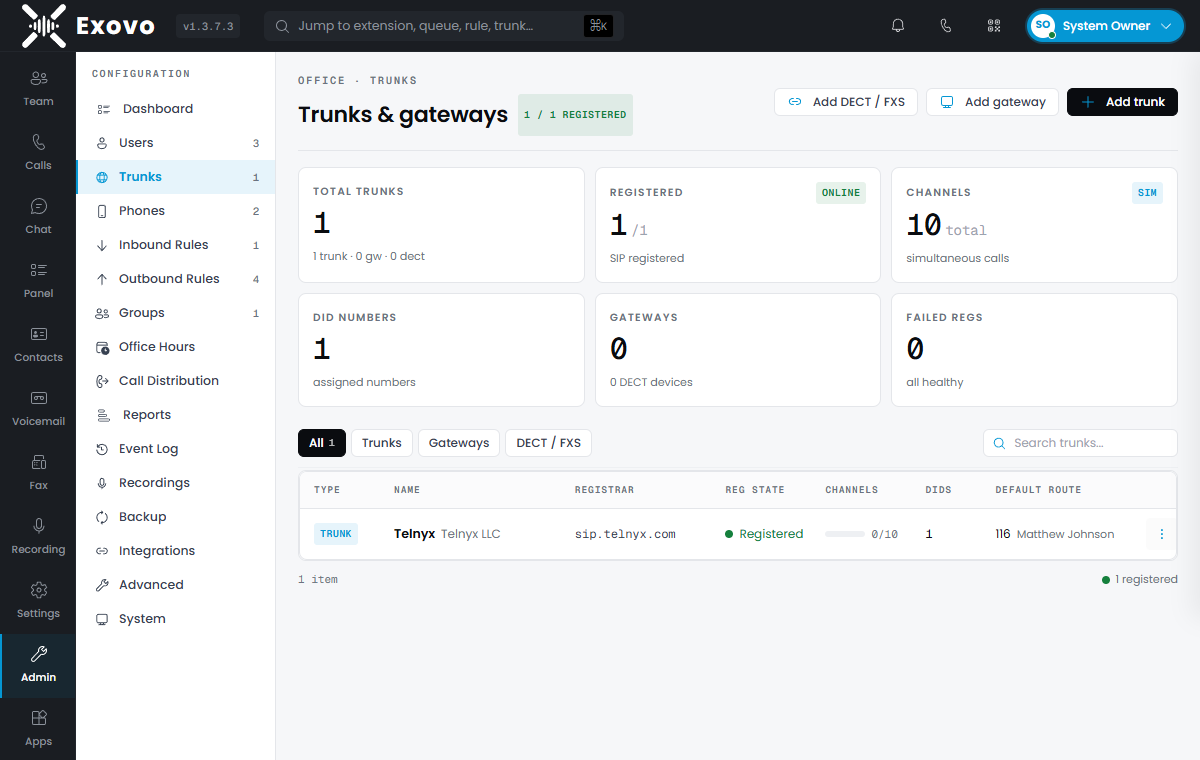
The trunk list shows live state: a green Registered dot, a gray Offline dot, or the IP auth badge, updating on its own the moment a trunk registers or drops. The stat strip at the top counts failed registrations across all trunks, and the dashboard's Trunks online tile tracks the same health at a glance.
If a registering trunk drops offline, open its row menu and choose Refresh Registration to send a fresh SIP REGISTER immediately instead of waiting for the next retry; the status dot updates once the provider responds. The action only applies to registering trunks — gateways and IP-authenticated trunks never REGISTER, so Exovo tells you there is nothing to refresh.
Troubleshooting a trunk that won't register
- Check the credentials — the authentication ID is often not your account number; providers frequently issue a separate SIP user ID.
- Check the firewall — outbound 5060/udp (or the template's port) must be open, and many providers also need your RTP range open for audio. See the installation port table.
- Check for SIP ALG — routers with "SIP ALG" or "SIP helper" enabled mangle registration traffic; disable it on the router.
- IP-auth trunks that reject calls — your public IP probably isn't (or is no longer) the one registered with the provider; verify it in their portal.
- Watch the event log — Admin → Event Log records registration failures with the provider's response code.