Extensions and users
In Exovo a user and their extension are one identity: the same record carries their web client login, SIP credentials for devices, voicemail box, forwarding behavior and permissions.
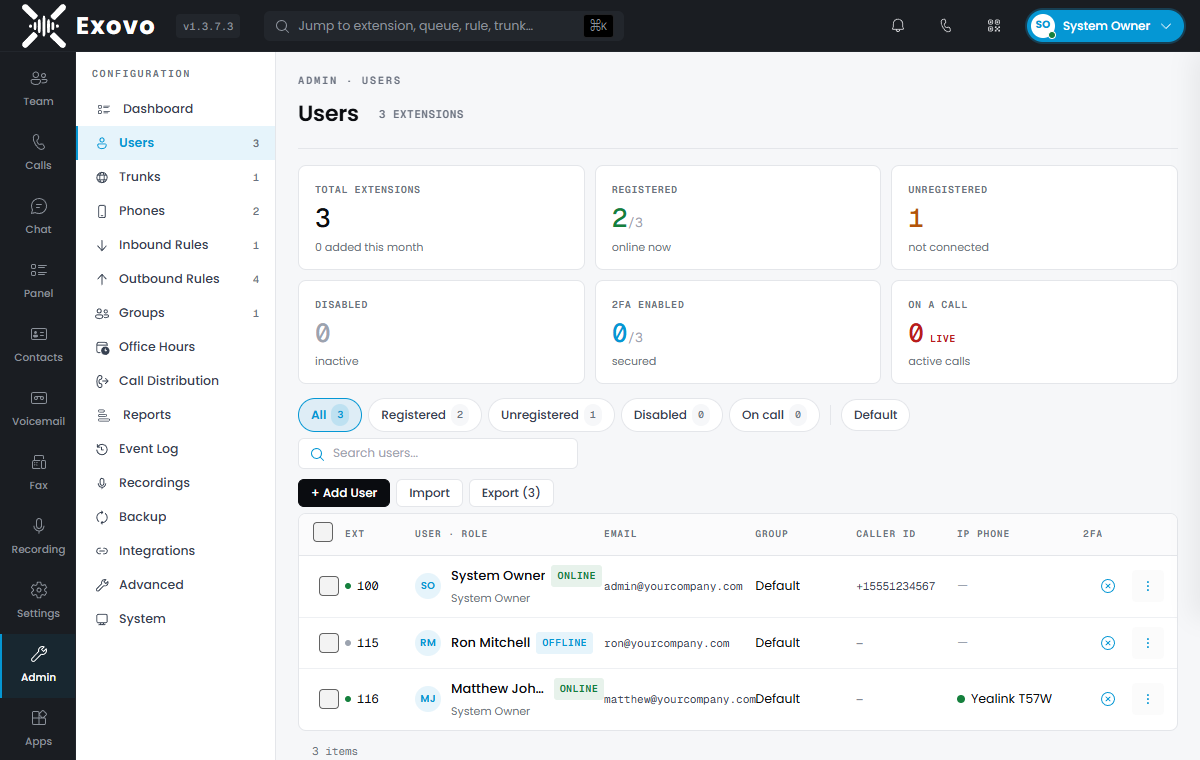
Creating an extension
Admin → Users → Add User. The essentials are the extension number (fixed once created), first/last name and email — email is where voicemail notifications and system mail go, and doubles as a sign-in name. Optional from day one: mobile number, outbound caller ID (the DID shown when this user dials out — see Caller ID), and a separate fax caller ID.
Tick Send welcome email on create to email the new user their sign-in details and a softphone setup QR (the QR embeds a provisioning code valid for 7 days). The option is available only once SMTP is configured under System → Email.
The status dot in the list tells you at a glance whether the user's devices are registered (green), offline (gray) or the account is disabled (red). Filters across the top narrow the list by group, role and registration — plus a live On call filter that shows only the extensions in a call right now, with a running count beside it.
Bulk management: export, import, copy
For onboarding a whole team, the Users toolbar has Export, Import and Copy.
- Export downloads the roster as CSV — extension, name, email, mobile, outbound caller ID, role and group. Passwords are never exported.
- Import creates users from a CSV in that same shape (only the extension is required). Paste or upload the file and Exovo checks every row before creating anything: numbers must be valid and unassigned, roles must be ones you're allowed to grant, and groups must already exist — you see a per-row Ready/skipped preview, and only valid rows import. Each new user gets a freshly generated password. Round-trips cleanly: export a roster, edit it, re-import the additions.
- Copy (select one user) clones that user's settings — role, group, caller ID, forwarding, recording and hours — to the next free extension number. Credentials and identity (email, mobile, registered phones) are not copied; the copy gets its own generated password.
The numbering plan
Numbers are 2-5 digits, and mixed lengths coexist — routing matches complete dialed numbers, so 3-digit extensions can live alongside a 4-digit branch plan without conflict. A few rules keep the namespace sane:
- One namespace. Extensions, queues, ring groups and digital receptionists share it — the system rejects a queue numbered like an existing extension.
- 90000-90099 is reserved for system device identities (gateways register with numbers allocated there) — user numbers in that range are rejected.
- Emergency numbers (911, 933, 411, 112, 999, 988) can never be assigned.
- Prefix overlaps warn, not block: creating extension
1001alongside100is legal, but desk phones that dial on digit-timeout make the overlap mildly annoying, so the console points it out and lets you decide.
Roles and access
Each user has a role: User (the default — web client, own settings), Group Admin / Group Owner (manage users within their group), or System Admin / System Owner (the Admin console). Independent of role, the Users list shows each user's 2FA state (see below) and account Active/Disabled status.
A Manager's or Group Admin's reach is the groups they belong to — one or several. They see everyone in the Users list, but opening a user for editing, removing them, resetting two-factor and impersonating (Group Admin and up) are limited to people who share a group with them — and never anyone who outranks them. System Admins and System Owners are tenant-wide.
Status options
Each status (Available, Away, and the custom ones) carries a few switches that change how calls reach you while you are in it:
- Accept a second call while I'm on one. Leave it on and a second caller beeps in — call waiting. Turn it off and while you are talking the next caller is treated as busy and follows your forwarding: your busy destination if you set one, otherwise your voicemail. It counts any call you are on, including one that reached you through a queue or a ring group.
- Accept calls from Ring Groups. Off keeps ring groups from ringing you while you are in this status. If every member has it off, the call goes to the group's no-answer destination. A page still reaches everyone.
- Log out from queues. Switching into a status with this ticked logs you out of your queues;
switching to one without it logs you back in. Logging in or out by hand (
*62/*63) sticks until your status next changes between one of these and the other.
Two-factor authentication
Exovo supports app-based two-factor authentication (TOTP) — the six-digit codes from Google Authenticator, Authy, 1Password and similar apps. Because a valid code can only come from the user's own authenticator, users switch it on themselves: under Settings → Security they choose Set up two-factor authentication, scan the QR code (or type the shown key into the app), and enter one code to confirm. After that, signing in asks for a code once the password checks out.
Admins don't hold users' authenticators, so they can't turn 2FA on directly — instead they set policy and handle recovery from Admin → Users:
- Require it — select users and choose Require 2FA (or tick Require on a user's edit page). A required user can't turn 2FA off themselves, and the list flags anyone who hasn't set it up yet as Required — not set up.
- Reset it — Reset 2FA clears a user's enrolled authenticator (lost-device recovery) so they can enroll a new one; if 2FA is still required they're prompted to set it up again.
Codes are time-based with a small clock-skew tolerance, and a used code can't be replayed. Pair 2FA with SSO and the hardening steps for defence in depth.
Impersonation
To see exactly what a user sees — to reproduce a problem or check their setup — select them in Admin → Users and choose Impersonate. The console reloads as that user, with an amber banner across the top (Viewing as … · Exit impersonation) so it's always obvious you're not in your own account. Exit impersonation returns you to your admin session, and an idle impersonation also ends on its own after about 15 minutes.
Guardrails: you can't impersonate yourself, a disabled account, or anyone who outranks you (a System Admin can't take over a System Owner), and you can't nest one impersonation inside another. Every action taken while impersonating is written to the audit log against both identities — the user and the admin behind them — and starting and stopping impersonation are logged too.
Reset password on the toolbar regenerates the user's credential set — web client password, SIP password and voicemail PIN together.
Groups and group permissions
Every user belongs to a group (new users land in the Default group). Groups (Admin → Groups) are both an organizational unit and a permission boundary: for each member you grant per-colleague rights — show my calls, barge-in/listen/whisper, see presence, see calls, call operations (transfer/park/pickup), user operations, send fax. These grants are what the operator panel enforces, so who may supervise whom is decided here, not on the panel. New members start with nothing granted.
Voicemail settings
Per user: voicemail PIN, greeting, and email options — none, a notification, the message as an attachment, or attachment-and-delete (the mailbox lives in email). The email includes the transcription when transcription is on. Send email on missed calls sends a note when a call rang the extension and went unanswered (a ring-group call a colleague took is not a missed call, and queue calls are left to the queue's own notifications). Toggles cover playing the caller's number before the message and skipping PIN authentication from the user's own devices. See what the system sends.
A message played by mistake can be put back: Mark unread beside the READ badge restores the NEW badge and re-lights the phone's message-waiting lamp. The lamp itself lights the moment a message is left — pushed over the phone's registration, so phones that never subscribe for message waiting (Cisco among them) see it too.
Forwarding and status
Each user has forwarding behavior per status (Available, Away, DND) — where calls go on no answer, when busy, or always. Users manage their own under Settings → Call Forwarding; a Forward All rule takes the extension out of normal ringing entirely, with exception rules for specific call types or times. Every forward target — voicemail, another extension, a queue, ring group or digital receptionist, or an external number — is chosen from a picker, so you select an existing queue or IVR by name rather than remembering its number.
When more than one exception rule could match a call, they're evaluated top to bottom and the first match wins — use the Move Up / Move Down arrows on each rule to set that priority.
A forward whose destination is a mailbox goes straight to that mailbox rather than ringing the extension first, and a forwarding chain that comes back to itself or exceeds the hop limit drops to voicemail instead of ringing forever.
Find Me / Follow Me
Instead of ringing the desk once and giving up, an Available-type profile can ring in stages: up to five ordered steps, each ringing your own devices and/or one other target — an extension or an external number like your mobile — together for a chosen number of seconds before moving to the next (e.g. desk 10s → desk + mobile 15s → voicemail). After the last stage, the profile's unanswered-calls forwarding applies as normal, so voicemail is never skipped. External stages dial out through your own outbound rules and caller ID — Find Me can't reach anywhere you couldn't dial yourself.
Per-call outbound caller ID
Beyond the single outbound caller ID, an admin can grant a user a list of additional allowed caller IDs (on the user's General tab). The web dialer then shows a Caller ID picker, and the chosen DID is presented for that call — useful when one person answers for multiple brands or departments. The selection is validated server-side against the allowed list and falls back to the default when it doesn't match, so users can only ever present numbers an admin approved.
One identity, many devices
The same extension registers from a provisioned desk phone,
the web client in a browser, the Exovo app for Windows and the
mobile app — simultaneously, and an inbound call rings all of them together. The per-extension
registration cap (MAX_REGISTRATIONS_PER_EXTENSION under System › Parameters, default 10)
bounds a leaked credential without getting in the way of a person with a phone and three apps; a
system upgraded from a release that seeded the old limit of 3 is lifted to 10 automatically unless
an administrator set the value by hand. Ring behavior, presence and
history stay unified, and assigning a desk phone is a two-click affair from the user's IP
Phone section (including per-key BLF/speed-dial layout, up to 128 keys on capable phones).
The Exovo app needs none of this: signing in (or entering a one-time pairing code minted from the web client's Provision apps button) enrolls the device automatically.
To set up a third-party SIP softphone, use QR Code on the user's edit page. It shows a scannable code plus the SIP account settings (server, extension, auth ID and password). The code is one-time and expires in 15 minutes; type the shown settings into the softphone by hand. Each time you open the dialog a fresh code is issued and the previous one stops working.